Google Snapmath Charge on Debit Card [Decoded]


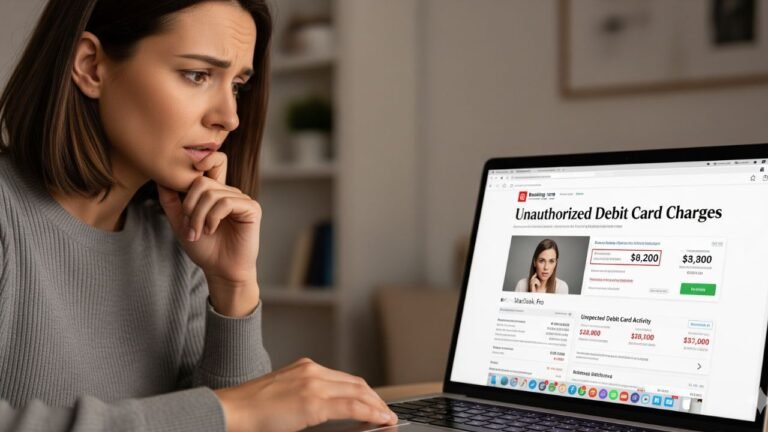
Seeing a Google Snapmath charge on debit card or bank statement can feel confusing, especially if you do not remember downloading a math app.
This article explains what the charge usually is, why it shows up, how to check it, and the practical steps to take next.
What Is the Google Snapmath Charge?
The Google Snapmath charge is typically a payment for the Snapmath photo math solver app (also called Snapmath – Photo Math Solver).
The app lets users scan math problems with a phone camera and receive step-by-step solutions. It is available on Google Play and processes payments through Google Play Billing.
Because Google handles the payment, the billing descriptor on your statement often appears as Google Snapmath, Google*Snapmath, or a close variation that includes both “Google” and “Snapmath.”
The developer is listed as Pisagor Apps (linked to Mustafa Eral / related names on other platforms). The app has basic free features and paid premium options for unlimited scans or extra tools.
Reported amounts from users and app listings commonly fall in the range of several dollars per week or around $9.99 per month, with other intervals available.
Exact prices can vary by plan and location. The charge is usually for a subscription or in-app purchase rather than a one-time fee from Google itself.
Why the Charge Appears on Your Debit Card
Several common situations lead to a Google Snapmath debit card charge:
- You or a family member started a premium subscription or in-app purchase inside the app.
- A free trial (when offered) converted to paid billing after the trial period ended.
- Someone using a shared Google account or device made the purchase.
- An automatic renewal occurred because the subscription was not canceled.
Google Play bills the payment method linked to the Google account used for the purchase. Uninstalling the app does not stop the subscription. The charge can also appear if the account is signed in on multiple devices.
How to Verify the Charge
Start with these practical steps:
- Note the exact date, amount, and full billing descriptor on your bank statement.
- Open the Google Play Store app or go to payments.google.com on a browser. Sign in with every Google account that might be linked to the card.
- Check order history and the Subscriptions section for any Snapmath entry.
- Search your email for receipts from Google Play around the charge date.
- Ask household members if they used the app or a shared device.
If the charge matches an entry in your Google account history, it is tied to that account. If nothing appears after checking all accounts, treat it as potentially unauthorized.
Is the Charge Legitimate?
Most Google Snapmath charges are legitimate payments processed by Google Play for the real Snapmath app available in the Play Store. The app exists, has tens of thousands of downloads, and offers paid premium features.
However, the app carries a low rating (around 1.3 stars from hundreds of reviews) and many users report unexpected or hard-to-cancel charges.
Some people say the subscription did not appear clearly in their Google Play list or continued after they thought they had stopped it. These reports point to aggressive or confusing billing practices rather than a completely fake merchant.
Legitimate scenarios include a forgotten trial, a family member’s purchase, or an automatic renewal.
Suspicious scenarios include repeated charges with no matching Google account activity, charges on a card never linked to any Google account, or multiple large amounts in a short time. In those cases, act quickly.
How to Cancel Snapmath
Canceling through Google Play is the standard method when the charge is processed by Google:
- Open the Google Play Store app and make sure you are signed into the correct Google account.
- Tap your profile picture, then select Payments & subscriptions, then Subscriptions.
- Find Snapmath (or the matching entry) and tap it.
- Select Cancel subscription and follow the on-screen prompts.
You can also manage subscriptions at play.google.com or payments.google.com on a computer. Canceling stops future renewals.
You generally keep access until the end of the period already paid for. Uninstalling the app alone does not cancel billing.
If the subscription does not appear in any Google account, contact the developer using the support email listed on the Play Store page (eral@snapmath.me has been shown) and request cancellation and a stop to further charges.
Keep records of all messages.
What to Do If You Do Not Recognize the Charge
Follow these steps in order:
- Double-check every Google account linked to the card, including family or old accounts.
- Cancel any matching subscription immediately using the steps above.
- Contact the developer support email with the charge date, amount, and a request for refund and cancellation.
- If you still cannot identify the charge or receive no help, contact your bank or credit union right away. Report it as an unauthorized transaction and ask about disputing it.
- Consider freezing or replacing the card if you suspect the number was compromised.
- Review recent emails and device access for any unfamiliar activity and change passwords on affected accounts if needed.
Bank dispute rights under Regulation E can depend on timing and circumstances. Act promptly and keep written records of every step.
How to Request a Refund
For charges processed by Google Play, request a refund through Google first:
- Go to your Google Play order history.
- Locate the Snapmath transaction.
- Select the option to request a refund and provide a clear reason (accidental purchase, unauthorized, or not as expected).
Google reviews requests on a case-by-case basis.
Success is not guaranteed, especially for older charges. If Google declines or the charge is not visible in your account, file a dispute with your bank.
Provide screenshots of your Google history search and any emails to the developer.
How to Contact the Merchant or Google
- Google Play / payments support: Use the help options inside the Play Store app or at support.google.com/googleplay for billing and unauthorized charge reports.
- Snapmath developer support email listed on Google Play: eral@snapmath.me (verify current details on the app page).
- Additional developer contact shown in some listings: napyonsen@gmail.com.
- Terms contact associated with the service: info@hubx.co.
Include the exact charge date, amount, last four digits of the card, and a clear request. Save copies of all messages.
Tips to Avoid Unexpected Charges
- Require authentication for every Google Play purchase in your account settings.
- Regularly review the Subscriptions list in Google Play.
- Avoid linking a debit or credit card to shared or children’s devices without strong purchase protections.
- Cancel trials and unused subscriptions as soon as you decide you no longer want them.
- Monitor bank statements weekly so small recurring charges do not go unnoticed.
FAQs About Google Snapmath Charge on Debit Card
Why does the charge say Google instead of just Snapmath?
Google processes the payment through its Play Billing system. The statement descriptor therefore often includes “Google” along with the app name.
Can a child or family member cause this charge?
Yes. If they used a device signed into your Google account or a shared payment method, the charge can appear on your card even if you never opened the app yourself.
Will canceling stop all future charges right away?
Canceling stops future renewals. You usually keep access for the time already paid. Any pending authorization may still post, but new charges should end after cancellation is confirmed.
What if the charge keeps appearing after I cancel?
Check every Google account again. Contact Google Play support and your bank. Provide proof of the cancellation request. Persistent unauthorized charges may require a card replacement.
Conclusion
A Google Snapmath charge on debit card is usually a payment for the Snapmath photo math solver app processed through Google Play. It most often results from a subscription, in-app purchase, or trial conversion linked to a Google account.
Verify the charge in your Google Play order history and subscriptions list first. Cancel any active plan, request a refund through Google when possible, and contact your bank promptly if you cannot identify or stop the charge.
If the activity remains unexplained after checking all accounts, treat it as potentially unauthorized and follow your bank’s dispute process. Staying current with your Google subscriptions and statement reviews helps prevent similar surprises.
Disclaimer: This information is for informational purposes only. ChargeOnDebitCard.com is not affiliated with Snapmath, Pisagor Apps, Google, or any bank. Readers should contact their financial institution about suspicious transactions or account-specific concerns.